Checking Registered Printers
Open the printer list
- Sign in to PICT, then open the top page.
https://mcloudtec.mimaki.com/
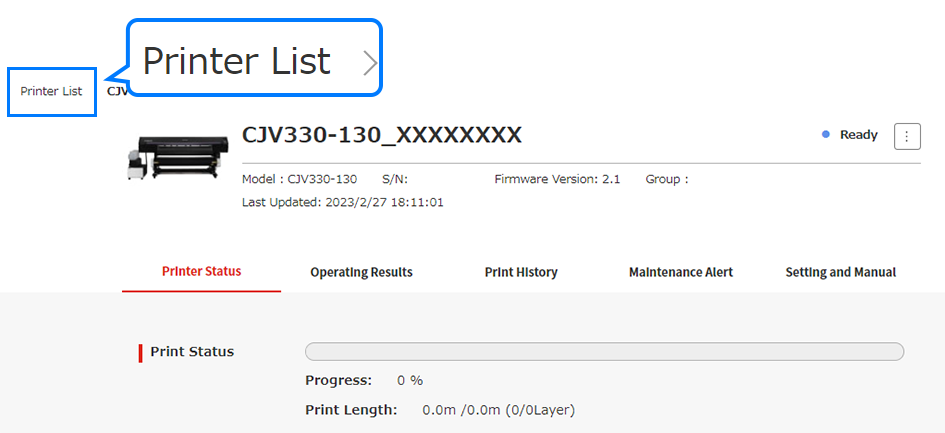
- Or, click [Printer List] in the upper left corner of the screen.
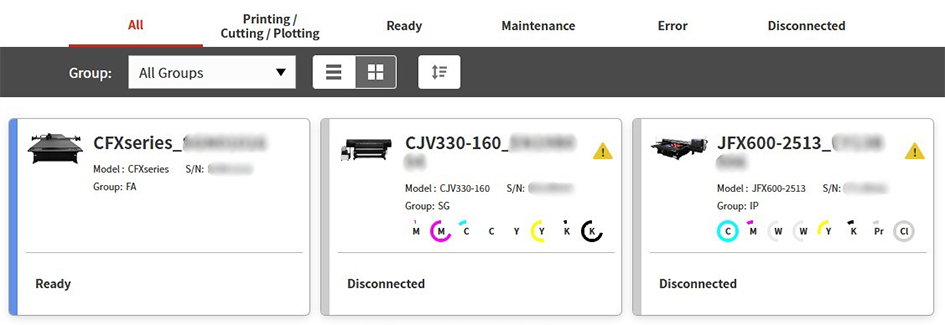
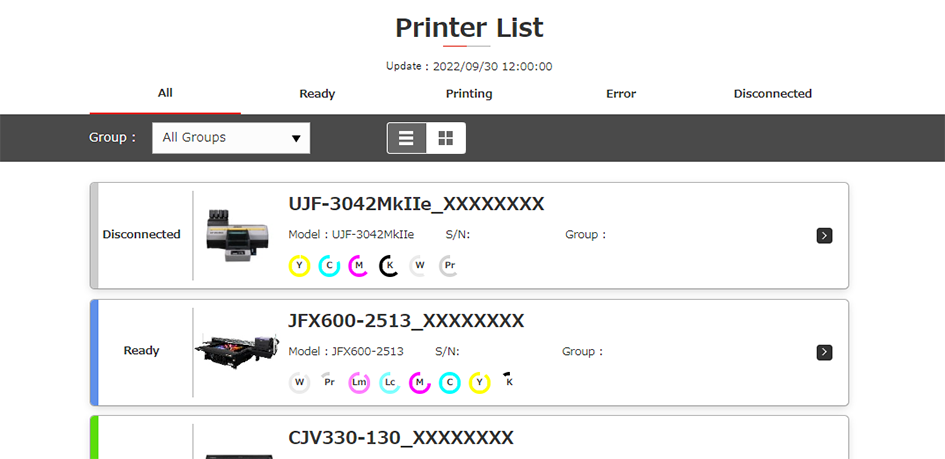
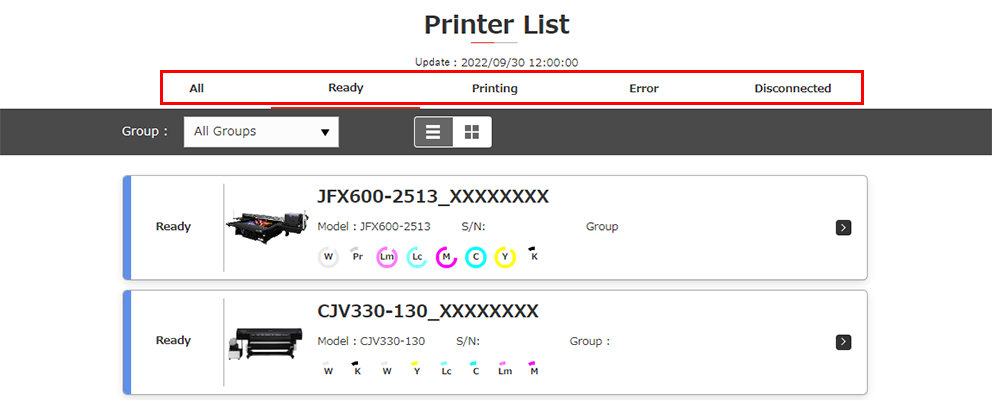
- The following information is displayed for each of the registered printers.

Display item | Explanation |
|---|---|
Printer name | Displays the name used to identify the printer. |
Model name | Displays the printer model. |
Serial number (S/N) | Displays the printer serial number. |
System status | Displays the current printer status. |
Group | Displays the name of the group set for the printer in PICT. |
Alert information | Warnings issued for the printer are displayed in Tips. |
Ink levels | Displays the remaining ink levels for the printer. |
Print Status | Displays the progress of the job currently being printed. |

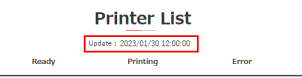
- The information displayed in the printer list is refreshed automatically every 5 minutes.
- The time the information was last refreshed is displayed below the printer list page title.
List by printer status
The printers can be listed by status by selecting the corresponding status tab.
Printer status | Details |
|---|---|
Ready*1 | The printer is ready to start printing/cutting. |
Printing*2 | The printer is currently printing. |
Cutting/Plotting | The printer is currently cutting. |
Maintenance | The printer is currently undergoing maintenance operation. |
Error | The printer cannot start printing/cutting. |
Disconnected | Printer is turned off or in sleep mode, preventing printer information from being acquired. |
- Check the actual status of the device before using it.
- The status changes to "Printing" or "Cutting/Plotting" when the print data has been received by the printer.
Changing the printer list display style
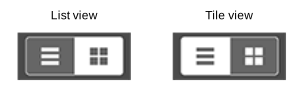
The printer list display style can be switched using the list view and tile view buttons.
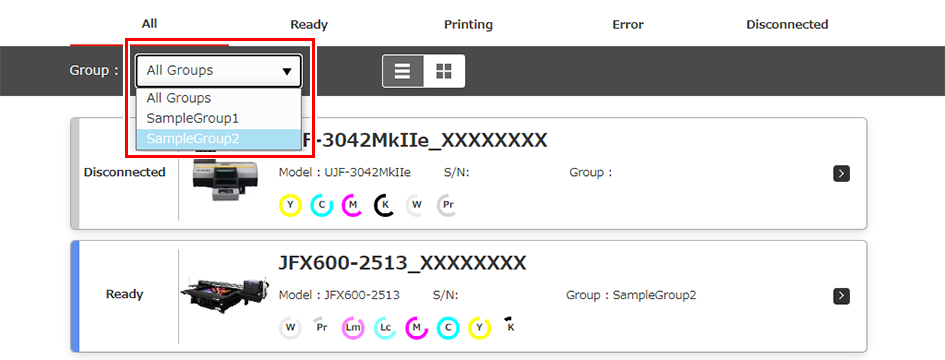
Filtering the printer list by group
- Select the desired group from the pull-down menu.
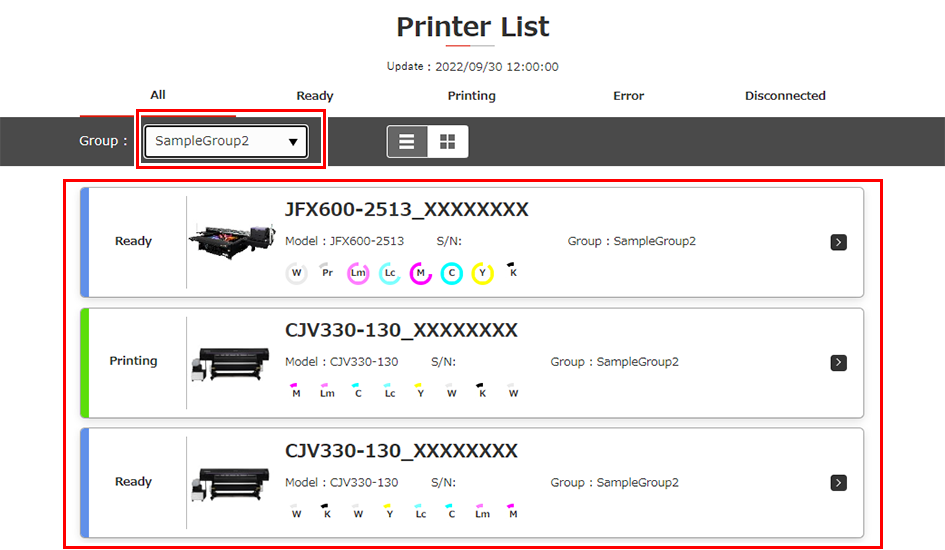
- Only those printers belonging to the selected group will be listed.
Changing the printer list order
- Click the sort icon [
 ].
].
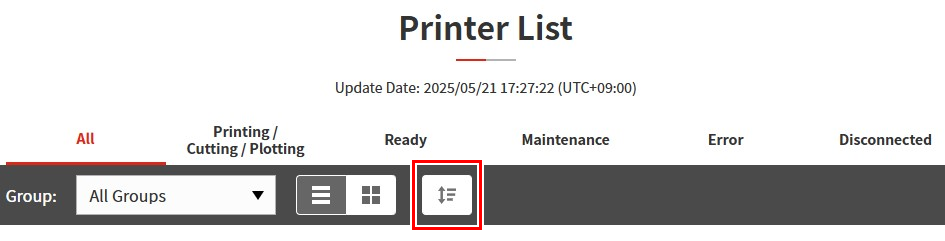
- Select the sort key and sort order.
Sort key | Details |
|---|---|
S/N | Sorts by serial number. |
Printer name | Sorts by printer name. |
Model | Sorts by model. |

Sort order | Details |
|---|---|
Sort A-Z | Sorts in ascending order. |
Sort Z-A | Sorts in descending order. |
- Click [Sort].

- Displays the list sorted in the selected order.