
Checking Printer Status
The current printer status can be checked using either of the following methods:
Method 1
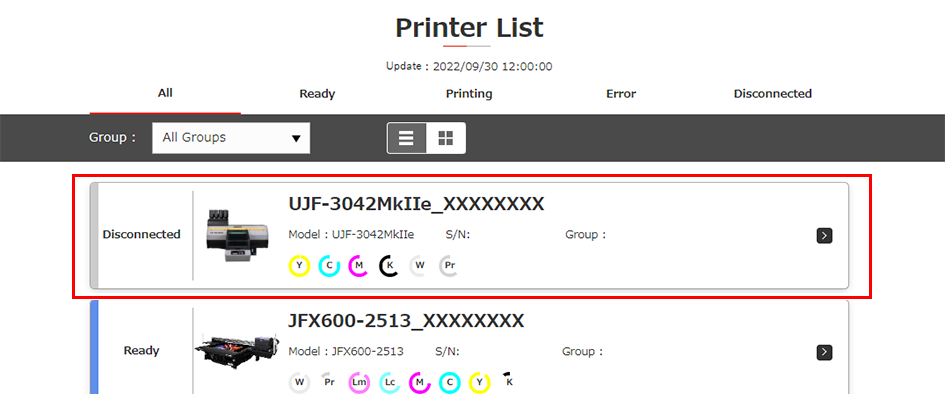
Click a printer in [Printer List] to display its current status.
Method 2
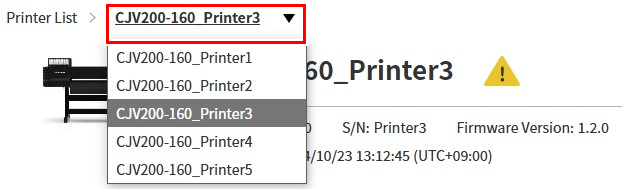
Click a printer on the breadcrumbs list to display its current status.
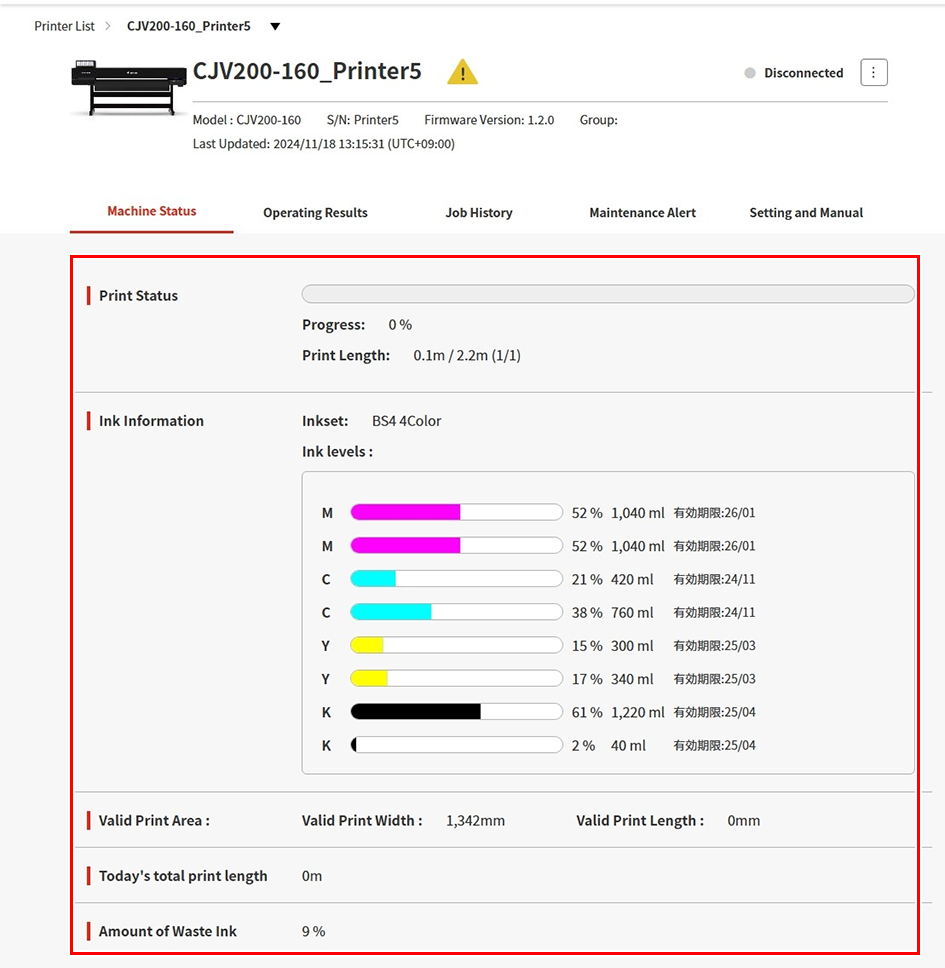
The current status is displayed for the selected printer.
List of display items
Display item | Explanation | |
|---|---|---|
Print Status | Progress | Displays the progress of the job currently being printed. |
Print Length | Displays the length already output for the job currently being printed. | |
Ink Information
| Inkset | Displays the ink set name for the inks installed in the printer. |
Ink levels | Displays the remaining ink levels for each ink slot. | |
Expiry | Displays the expiry date for the inks in each ink slot. | |
Valid Print Area
| Valid Print Width | Displays the maximum available width. |
Valid Print Length | Displays the maximum available length. | |
Today's total print length | Displays the total print length of the jobs printed today. | |
Amount of waste ink | Displays the amount of waste ink in the waste ink tank. | |
- The following items are displayed for the cutting plotter:
Display item | Explanation | |
|---|---|---|
Tool Information | Tool List | Displays the tool types mounted. |
Valid Print Area | Valid Print Width | Displays the maximum available width. |
Valid Print Length | Displays the maximum available length. | |
Today's total cut length | Displays the total cut length of the jobs cut today. | |
For details of the tools, refer to the Operation Manual for the individual model.
