
Checking Job History
A date can be selected to check the job history.

- If the print start and end times differ from the actual print times, check the printer clock setting.
- Click a printer in [Printer List] to check its history.
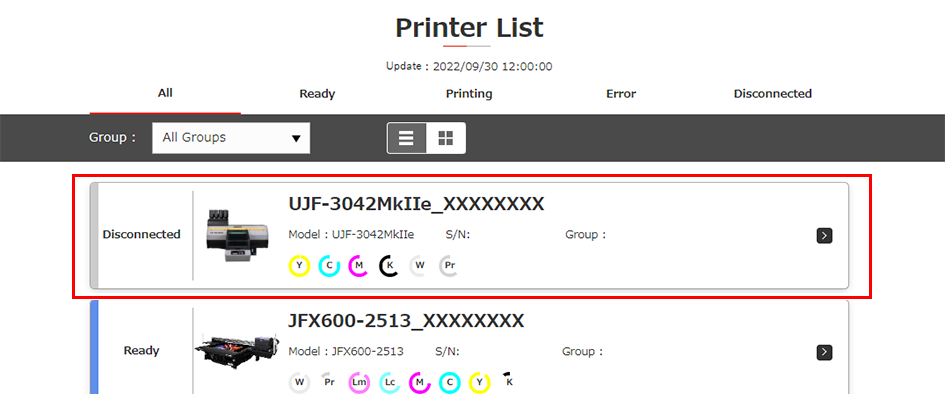
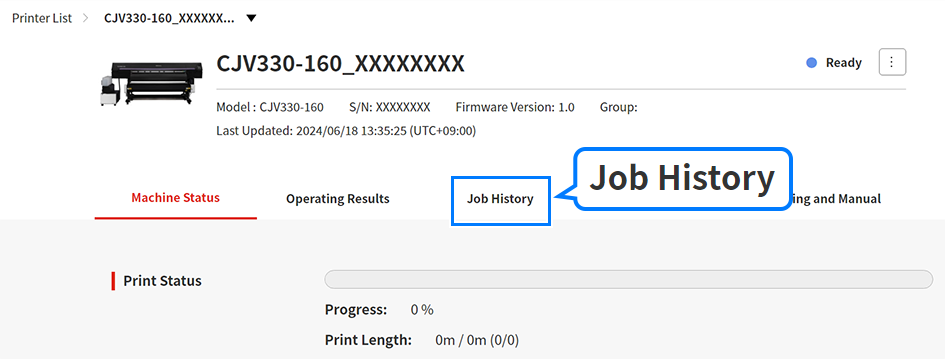
- The current status is displayed for the selected printer. Click the [Job History] tab.
- The job history is displayed.
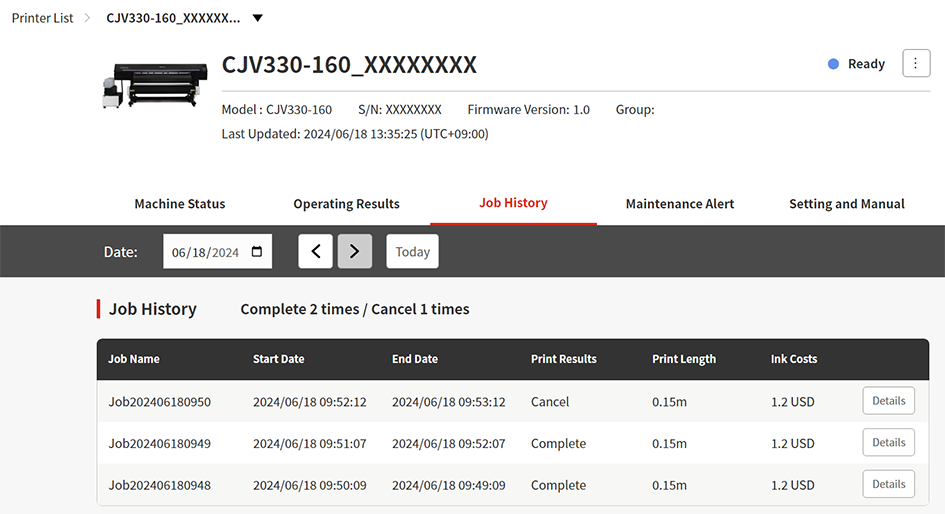
- Job History can be set to a period from the 1st day of the month three months before today's date to today's date.
Checking print conditions for jobs printed in the past
Click [Details] on the [Job History] list to check the print conditions for jobs printed in the past.
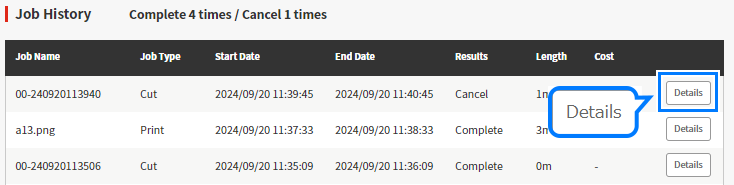
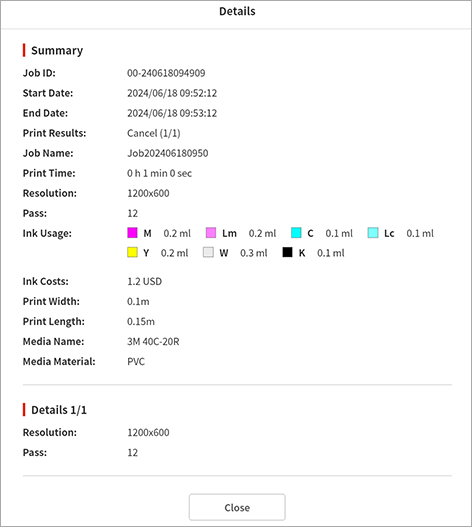
The following print condition information is displayed:
Display item | Explanation | |
|---|---|---|
Summary | Job ID | The job identification number |
Start Date | The date and time the print started | |
End Date | The date and time the print ended | |
Print Results | The print results | |
Job Name | The job file name | |
Print Time | The time the print took | |
Ink Usage | The amount of ink used for printing*1 | |
Ink Costs | The cost of ink used for printing | |
Print Width | The width of the job | |
Print Length | The length of the job | |
Media Name | The media name associated with the profile used for printing. | |
Media Material | The media material | |
Print conditions for each layer | Resolution | The resolution for the job |
Pass | The number of passes for the job | |
- The ink usage values displayed include the ink used for both printing and maintenance operations.

- Values indicated for ink usage are estimates calculated by the printer firmware based on printing conditions.
Depending on how printers have been adjusted, values indicated may not match the actual amount of ink consumed for printing. - Accurate data may not be displayed unless the PC on which PICT Up is installed and the printer are always connected.
Checking cut conditions for past cut jobs
Click [Details] on the [Job History] list to check the print conditions for jobs printed in the past.
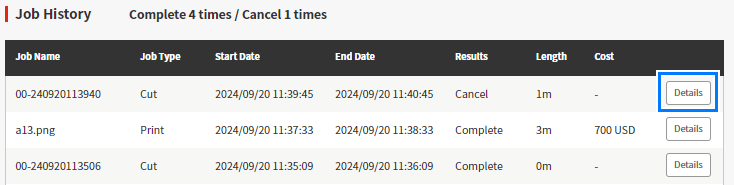
The following print condition information is displayed:
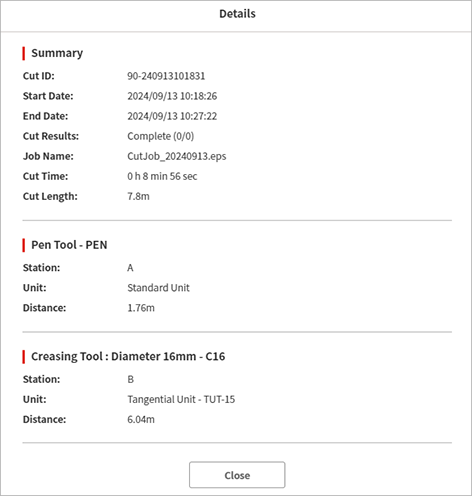
Display item | Explanation | |
|---|---|---|
Summary | Cut ID | The job identification number |
Start Date | The date and time cutting started | |
End Date | The date and time cutting ended | |
Job Name | The job name (file name) | |
Cut Results | The cutting results | |
Cut Time | The time cutting took | |
Cut Length | The length cut | |
Individual tool cutting conditions | Station | The position of the station at which the tool is mounted |
Unit | The name of the unit on which the tool is mounted | |
Distance | The tool cutting distance | |
