
I want to uninstall PICT Up
Describes the procedure for uninstalling PICT Up.

Uninstalling will delete all PICT Up settings and files. Check the following before uninstalling:
- No files for logs/parameters acquired from the printer are saved in the PICT Up folder. (Files will be deleted. Files should be backed up in another location if necessary.)
- PICT Up is not running
- The PICT Up folder is not open
- Exit PICT Up.
- Open the task tray displayed on the desktop tool bar.

- Right-click the
 icon, then click [End].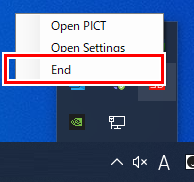
- PICT Up is no longer resident on the task tray.
- On the Windows [Start] Menu, click [Settings] - [Apps] - [Apps & features].
- Select [PICT Up] in the [Apps & features] list, then click [Uninstall].
- Click [Uninstall].
- Uninstallation starts.
- Click [Yes] if the User Account Control dialog appears.
- This completes the uninstallation process.

If PICT Up is uninstalled while it is still running, some files may not be deleted, and may remain after the software has been uninstalled.
Exit PICT Up, then manually delete the following folders:
Exit PICT Up, then manually delete the following folders:
- C:\PICTUp
- C:\PICTUpWeb
