
Linking a Web Camera to a Printer
Linking a web camera to a printer allows a video feed of the printer to be checked via PICT.

The following preparations are required to use this function:
- PICT Up version 2.00 or later must be installed on the PC.
- The web camera must support USB Video Class.

Operation has been confirmed with the following products in Mimaki environments:
· Logtech C270 HD
· Anker PowerConf C200
· Buffalo BSW700MZ
The confirmation results for the listed products are as of October 2026. Operation is not necessarily guaranteed in all environments.
· Logtech C270 HD
· Anker PowerConf C200
· Buffalo BSW700MZ
The confirmation results for the listed products are as of October 2026. Operation is not necessarily guaranteed in all environments.
Linking a camera to the printer
- Double-click the [PICT Up] icon on the desktop.
If you wish to launch PICT Up from the [Start] menu, the procedure is as follows:
- From the [Start] menu, select [All apps] - [PICT Up] - [PICT Up].
- Sign in to PICT Up.
- Click [Camera Settings] at the bottom of the screen.

- The camera settings screen ([External device control unit] dialog) appears.
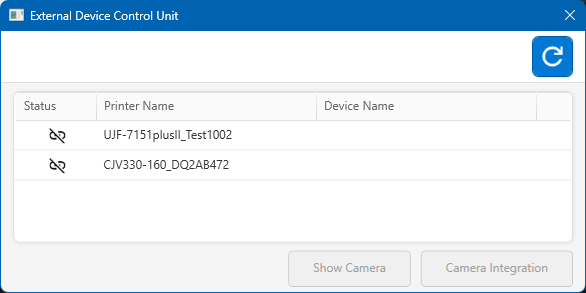
- Install a camera on the printer.
- Install the camera so that the printed output is visible.
- Select the printer, then click [Camera Integration].
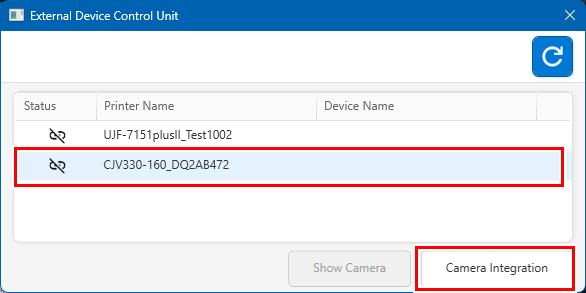
- The camera linking screen appears.
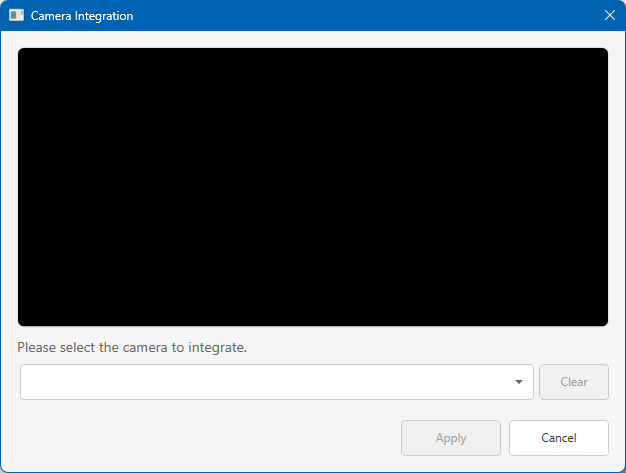
- Select the camera to be linked, then click [Apply].
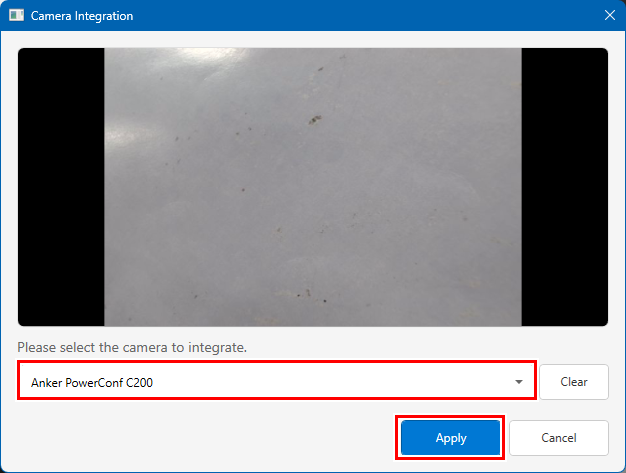
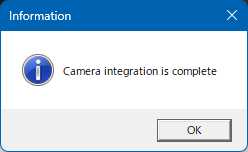
- The [Information] dialog appears.
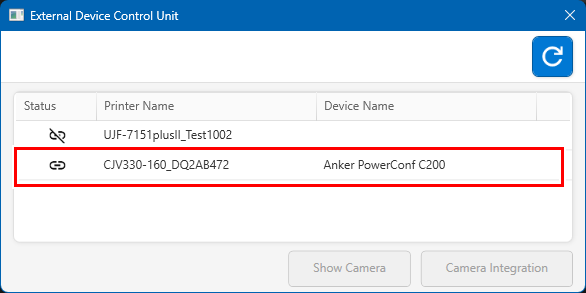
- Check to confirm that the selected printer and camera are linked.
Checking the video from the linked camera
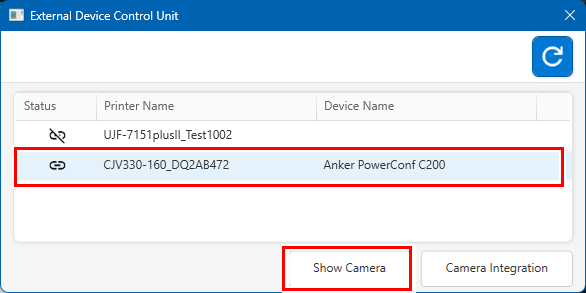
- Select the printer linked with the camera, then click [Show Camera].
- Check to confirm that the video of the selected printer is displayed, then click [Close].
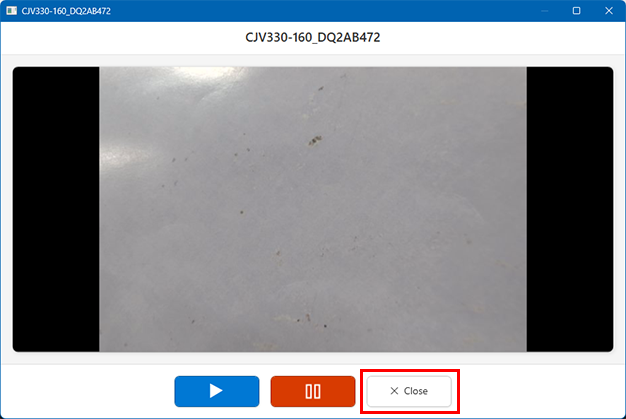
- To pause the video for checking, click the pause button.
- To resume after pausing, click the resume button.
- If you wish to link a linked camera to a different printer, first unlink the camera, then link it to the new printer.
