Checking Printer Video
The video from the printer linked with the camera can be checked.
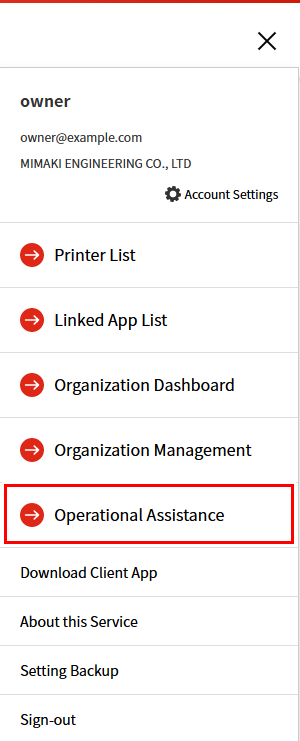
- Select [≡] at the top right of the header, then click [Operational Assistance].
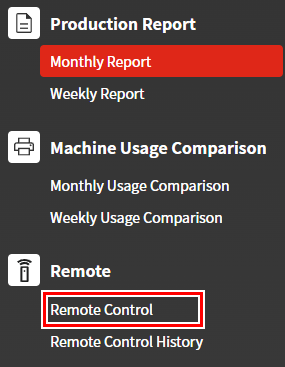
- Click [Remote Control].
- The remote control window appears.
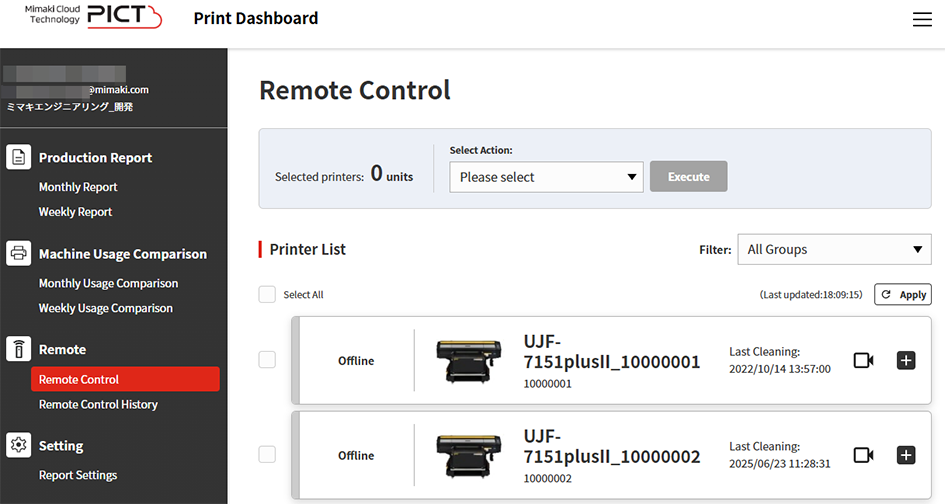
- Click the view printer video icon (
 ) for the printer linked with the camera.

- Click [View].
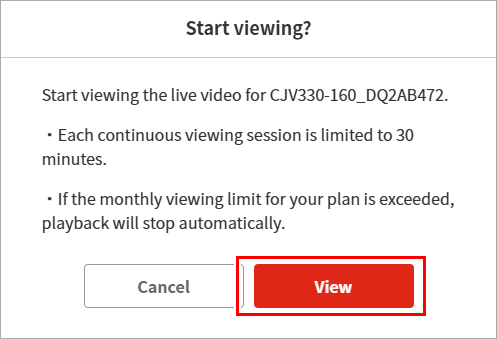
- The video is displayed once it has loaded.
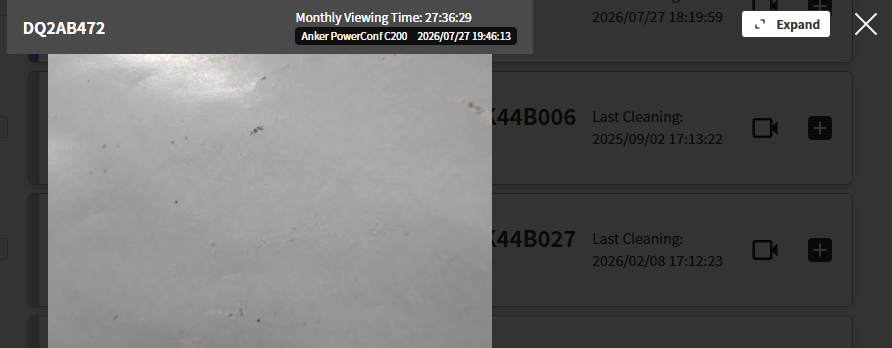
- To quit viewing, click [×].

- Video viewing ends.
Enlarging the video
- Click [Expand].

- The video is displayed in full-screen mode.

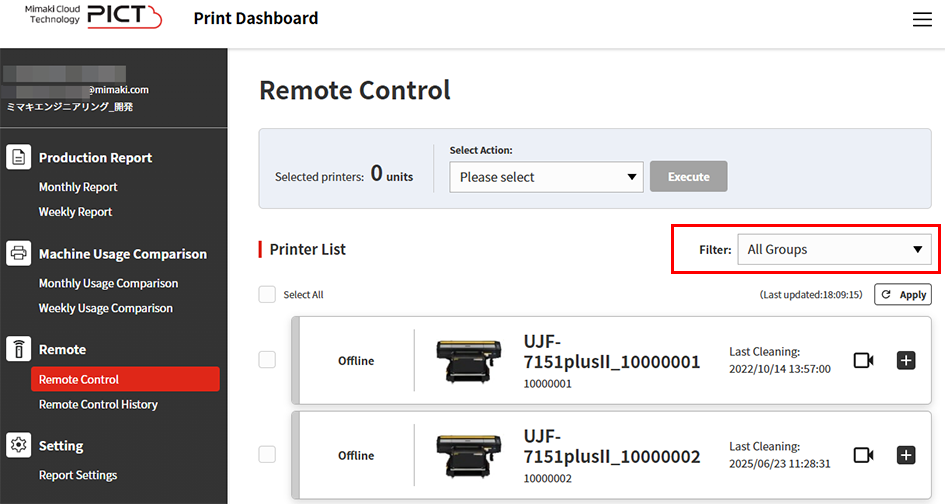
Filtering the printers displayed
Selecting a group on the filter list enables only those printers set for the selected group to be displayed.