
Unsharing Files on Cloud Storage
Files can be unshared if the sharing destination or shared file is incorrectly entered.

- Files cannot be restricted if they have been downloaded before they are unshared.
- Set the search conditions, then click [Search].
- Click the [Unshare] icon (
 ) for the file to be unshared on the Settings Backup File List.
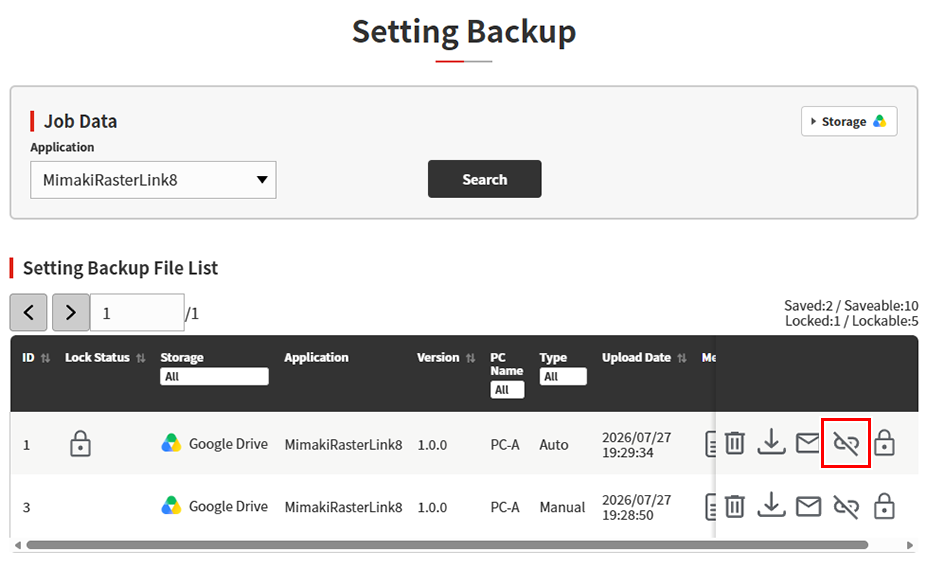
- The unshare dialog appears.
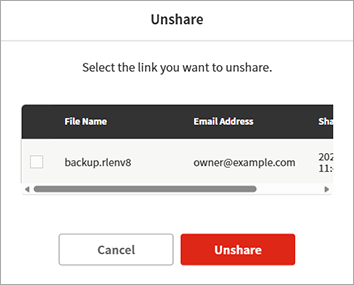
- The following information is displayed for the shared file:

Display item | Explanation |
|---|---|
[File Name] | Displays the name of the shared file. |
[Email Address] | Displays the email address to which the file is shared. |
[Share Date] | Displays the time and date the file was shared. |
- Select the check box for the email address to be unshared, then click [Unshare].
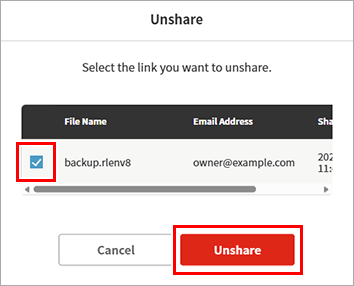
- The download link sent to the email address selected will be disabled.
