Locking Files to Prevent Deletion from Cloud Storage
The lock function can be used to protect files you do not wish to be deleted.

- Even files that have been locked using this function can be deleted on the cloud storage service where they have been saved. They can no longer be used in PICT if they are deleted.
- Set the search conditions, then click [Search].
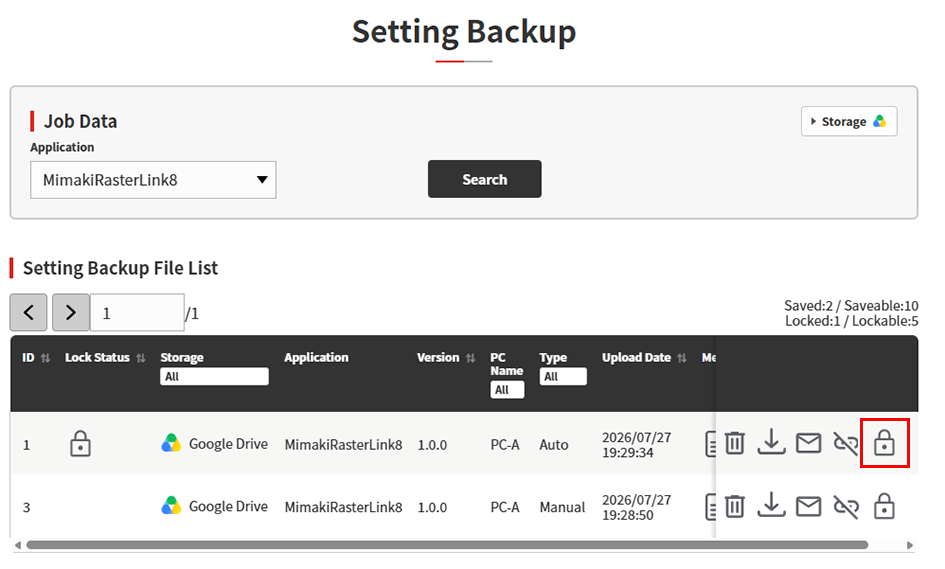
- Click the [Lock] icon (
 ) for the file to be locked on the Settings Backup File List.
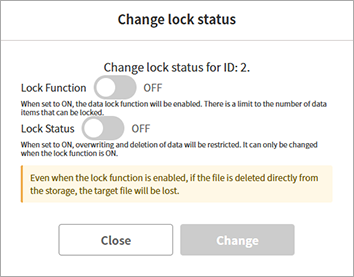
- The lock status change dialog appears.
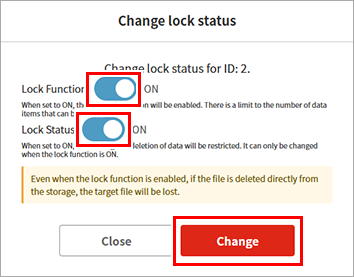
- Enable the [Lock Function] and [Lock Status] settings, then click [Change].
- The file is now locked.
- There is a limit on the number of files that can be locked. Once the allowed number of files has been locked, no more files can be locked.
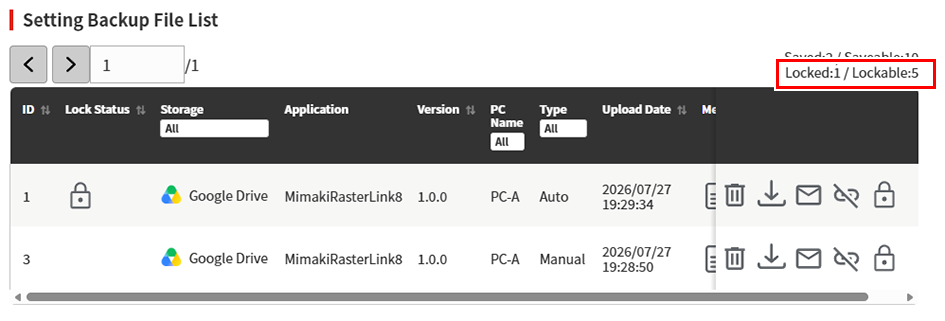
- Check [Locked/Lockable] on the Settings Backup File List to see the number of files that can be locked.
· Locked: The number of files locked using the lock function
· Lockable: The maximum number of files that can be locked using the lock function