
Using Two-Factor Authentication
Two-factor authentication can be enabled to increase the security of your account.

- Two-factor authentication settings can be changed by an owner or administrator account.
- When two-factor authentication is enabled, an authentication code must be entered after entering the email address and password.
- If two-factor authentication is enabled while you are signed in, two-factor authentication will not be required during the current session. Two-factor authentication will be required from the next time you sign in.
Enabling two-factor authentication
- Click [Change] under [Two-Factor Authentication].
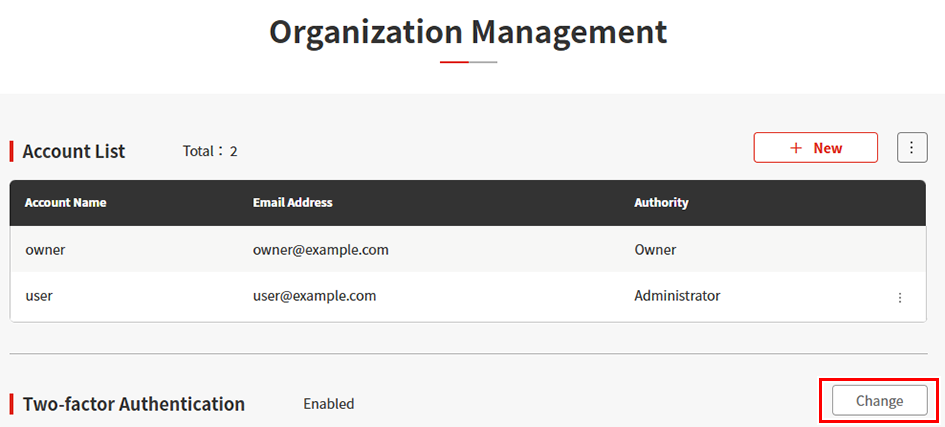
- The [Two-factor authentication setting] dialog appears.
- Select the [Enabled] radio button for [Two-Factor Authentication].
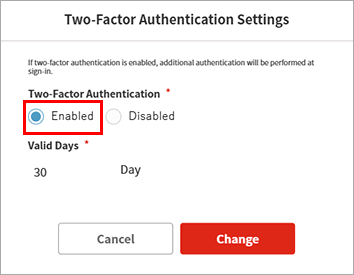
- Select the number of days for which two-factor authentication can be skipped from the [Valid Days] list, then click [Change].
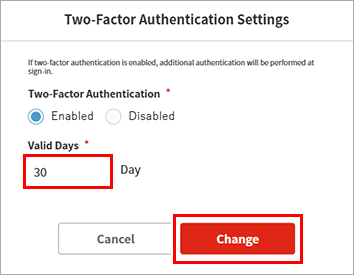
- During the period from when two-factor authentication is successful until the set number of valid days has elapsed, you can sign in using only your email address and password.
- Whether two-factor authentication can be skipped is determined for each individual browser.
Two-factor authentication will therefore be required if you sign in using a different PC or browser.
Disabling two-factor authentication
- Click [Change] under [Two-Factor Authentication].
- The [Two-factor authentication setting] dialog appears.
- Select the [Disabled] radio button for [Two-Factor Authentication], then click [Change].
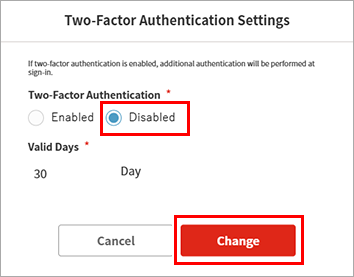
- Two-factor authentication will not be required from the next time you sign in.
Using two-factor authentication
- Access the PICT sign-in page.
- Enter your email address and password, then click [Sign In].
- A security code entry dialog appears.
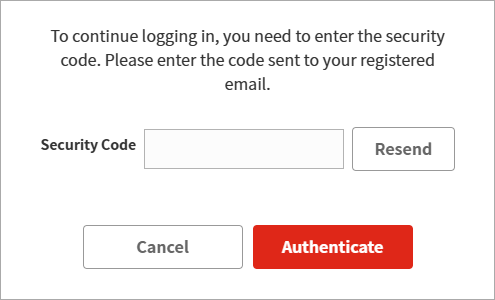
- Open the email sent to the email address entered, then check the security code.

- Enter the security code in the security code entry dialog, then click [Authenticate].
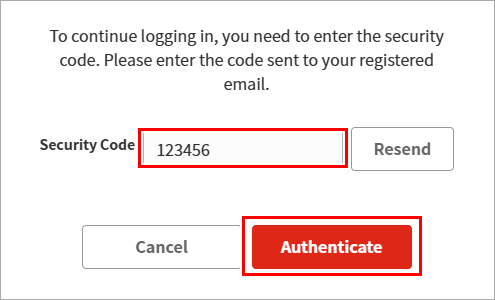
- When the security code is successfully authenticated, the [Printer List] window appears.

- If the email has not arrived or the security code has expired, click [Resend].
An email containing a new security code will be sent.
Enter the security code again. - A new code cannot be sent until one minute has elapsed since the last security code was generated.
