
Downloading Printer Operation Data as a File
- Click [CSV Output] in the menu.
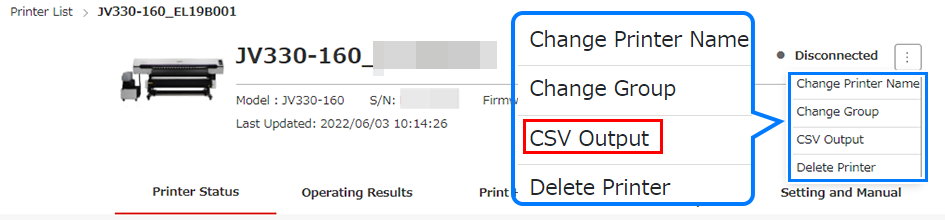
- The [CSV output] dialog appears.
- Select the type and period for the data to be downloaded.
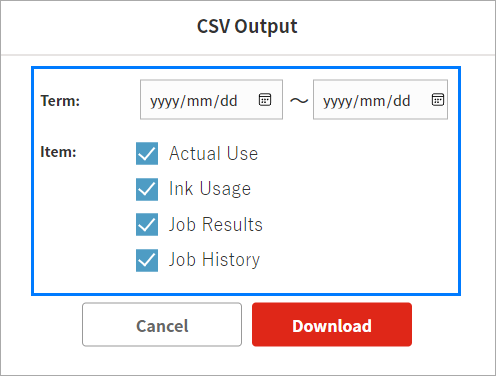
- The following information is exported in CSV format:

Type | Details |
|---|---|
Actual Use | The actual use for each day |
Ink Usage | The ink usage and cost for each day |
Job Results | The job record for each day
|
Job History | The printer job history |

- The target period for CSV output can be set to start no earlier than the 1st day of the month one year ago.
The period for a single CSV output can be specified as up to three months.
- Click [Download].
- Downloading of a ZIP file containing a CSV file starts.
- The data download function is available only when viewing in a browser on a PC.
- If file downloading does not start within 30 seconds, check to confirm that browser pop-ups are not being blocked.
CSV file output is not possible
