
Checking Files Uploaded to Cloud Storage

- This function requires linking with a cloud storage service.
Linking to Cloud Storage - The currently linked storage information can be checked by clicking [Storage] in the Search Conditions.
- Click [≡] at the top right of the PICT screen.
- Click [Settings Backup] in the pull-down menu.
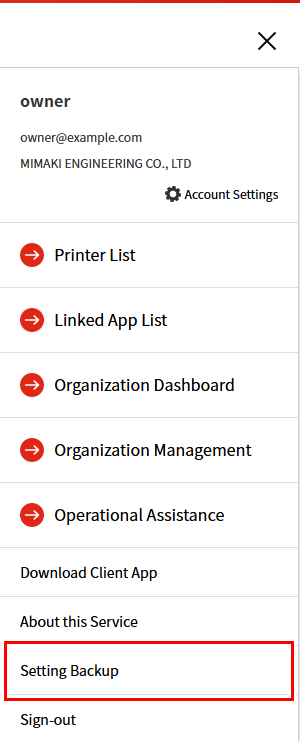
- The [Settings Backup] window appears.
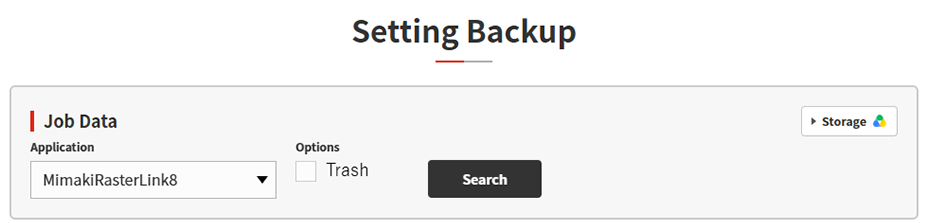
Checking saved files
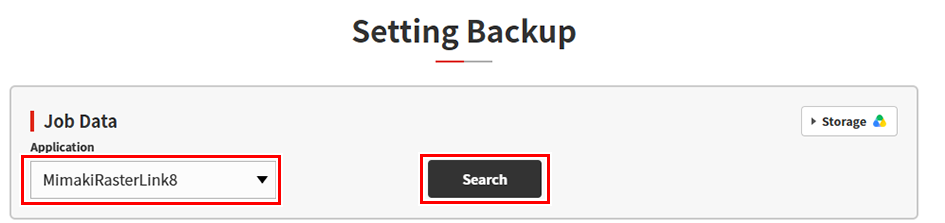
- Select the application to be searched, then click [Search].
- The saved files are displayed in the Settings Backup File List.
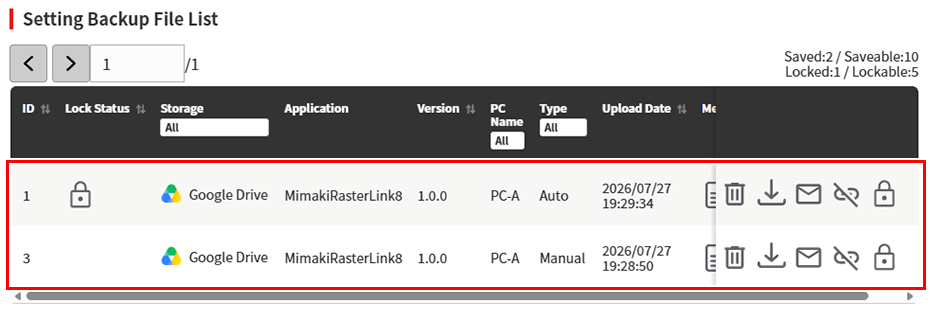
- The following items are displayed:
Display item | Explanation |
|---|---|
[ID] | Displays the ID set for the file. |
[Lock status] | Displays the file lock status.
|
[Storage] | Displays the name of the cloud storage service to which the file is uploaded. |
[Application] | Displays the name of the application with which the file can be used. |
[Version] | Displays the version of the application. |
[PC name] | Displays the name of the PC that uploaded the file. |
[Type] | Displays the event for which the file was saved.
|
[Upload Date] | Displays the time and date when the file was uploaded. |
 ) is displayed.
 ) is displayed.
- List of operations available for files
Operation | Icon | Explanation |
|---|---|---|
[Memo] |
| Allows the memo containing the supplementary description set at the time of file upload to be checked. |
[Delete File] |
| Delete the specified file. |
[Download] |
| Downloads the file. |
[Email] |
| Sends an email containing a link to the file to the specified recipient. |
[Unshare] |
| Disables the file download link to prevent it from being downloaded. |
[Lock] |
| Toggles the lock setting preventing the file from being deleted in PICT. |


