
Checking All Printer Operating Results
A data collection period can be selected to check the operating result data collected for all printers.

- The following data collection display units and periods can be selected:
Display units: Day/Week/Month
Period: Today/This Week/This Month/3 Months/6 Months/1 Year/Custom - The aggregated data graph will be displayed using the selected units and period.
- "Day" cannot be set for the display units when the selected period is 91 days or more.
- Custom can be set to a period from the 1st day of the month 12 months before today's date to today's date.
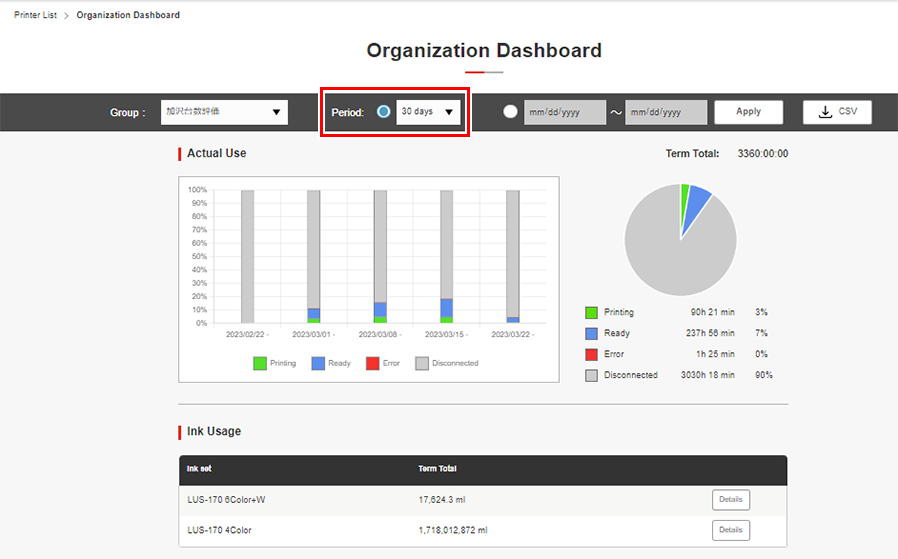
- The following operating result items are displayed:
Display item | Explanation |
|---|---|
Actual Use | Displays the total usage time for each printer status over the selected period. |
Ink Usage | Lists the ink usage values and cost for each type of ink over the selected period. |
Print Count | Displays the total number of prints over the selected period. |
Print Area | Displays the total print area over the selected period. |
Print Length | Displays the total print length over the selected period. |
Number of Cuts*1 | Displays the total number of cuts over the selected period. |
Cut Length*1 | Displays the total cut length over the selected period. |
- This is displayed only for models equipped with cutting functions.

- Values indicated for ink usage are estimates calculated by the printer firmware based on printing conditions.
Depending on how printers have been adjusted, values indicated may not match the actual amount of ink consumed for printing. - Accurate data may not be displayed unless the PC on which PICT Up is installed and the printer are always connected.
Displaying ink usage details for each type of ink
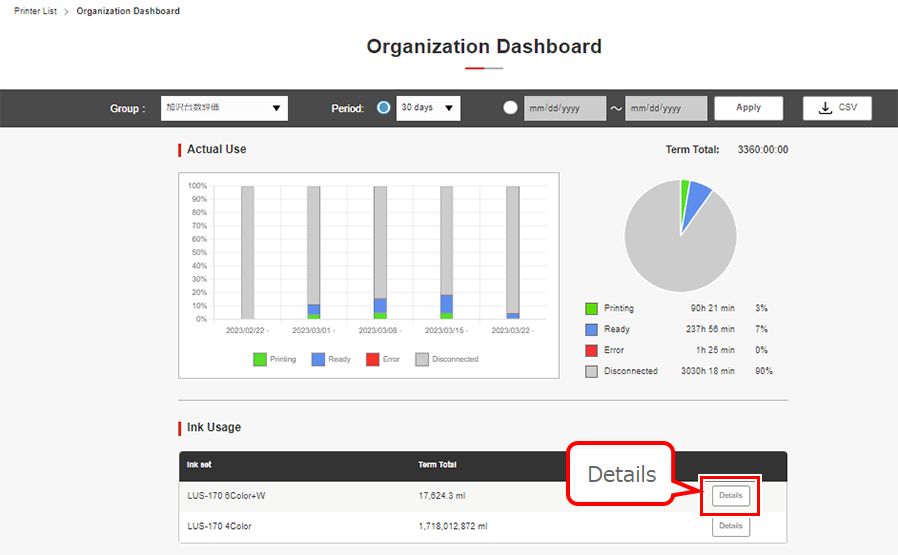
- Click [Details] for the ink type item to view in detail on the Ink usage list for each ink set.
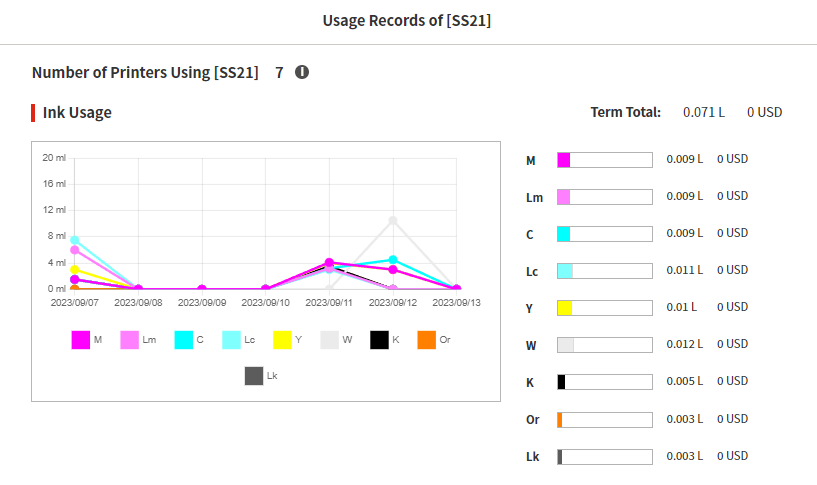
- Ink usage and cost are displayed for each ink color for the type of ink selected.
Viewing data filtered by group
- Set a group for the printer to be filtered.
Creating a new group
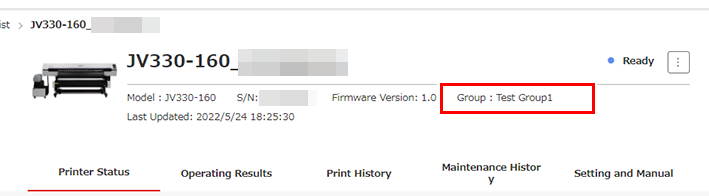
- Select the group to be used for filtering from [Group], then click [Update].
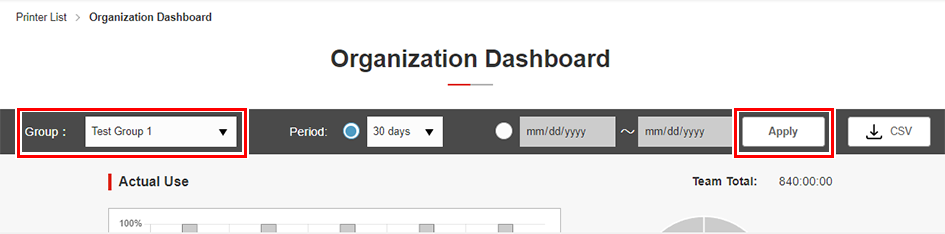
- Check to confirm that the display details have been changed.
Downloading operating results as a file
- Click [CSV].

- The [CSV output] dialog appears.
- Select the type and period for the data to be downloaded.
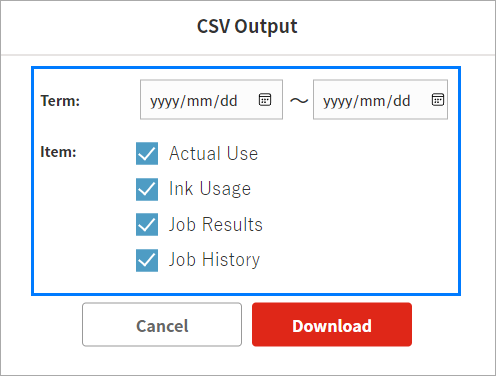
- The following information is exported in CSV format:

Type | Details |
|---|---|
Actual Use | The actual use for each day |
Ink Usage | The ink usage and cost for each day |
Job Results | The job record for each day
|
- The target period for CSV output can be set to start no earlier than the 1st day of the month one year ago.
The period for a single CSV output can be specified as up to three months.
- Click [Download].
- Downloading of a ZIP file containing a CSV file starts.
- The data download function is available only when viewing in a browser on a PC.
- If file downloading does not start within 30 seconds, check to confirm that browser pop-ups are not being blocked.
CSV file output is not possible
